

Uptime Monitor
Agent. Confirms outages and sends the alerts.
Website health watch is a recipe in Ai1, the AI agent platform by MyZone AI, where several agents and skills work together to deliver one outcome. The Uptime Monitor checks your sites on your schedule and confirms a real outage before alerting, the Page Speed Monitor retests your key pages and flags slowdowns, and the Webmaster prepares the fixes you approve.
How the recipe works
Two monitors watch and one agent fixes. A fix reaches your live site only with your approval.
Uptime MonitorUptime check Page Speed MonitorPage speed check
 WebmasterFix list
Know first
A confirmed outage alerts the right people, with a recovery notice when the site is back.
Slow pages caught
Key pages are retested on your schedule, with an alert on clear slowdowns and on recoveries.
Fixes in order
Ranked fixes go to the Webmaster if you ask, and a retest shows whether the change helped.
At a glance
| Agents | Uptime Monitor, Page Speed Monitor and Webmaster |
|---|---|
| Uptime checks | From every minute to once a week, chosen for each site |
| Before alerting | Two failed checks a few seconds apart confirm a real outage |
| Speed tests | Key pages retested on your schedule, at most once an hour |
| Changes | Only the fixes you approve |
A site can be up and still lose customers because a key page has become slow. Watching only uptime misses that, and watching only speed misses an outage. This recipe watches both and hands the fixes to the agent that looks after your site.
How this differs from the Uptime Monitor on its own: the recipe adds speed tests on your key pages, and a path from an alert to a fix.
How it works
A simplified view. The monitors only watch; fixes wait for you.
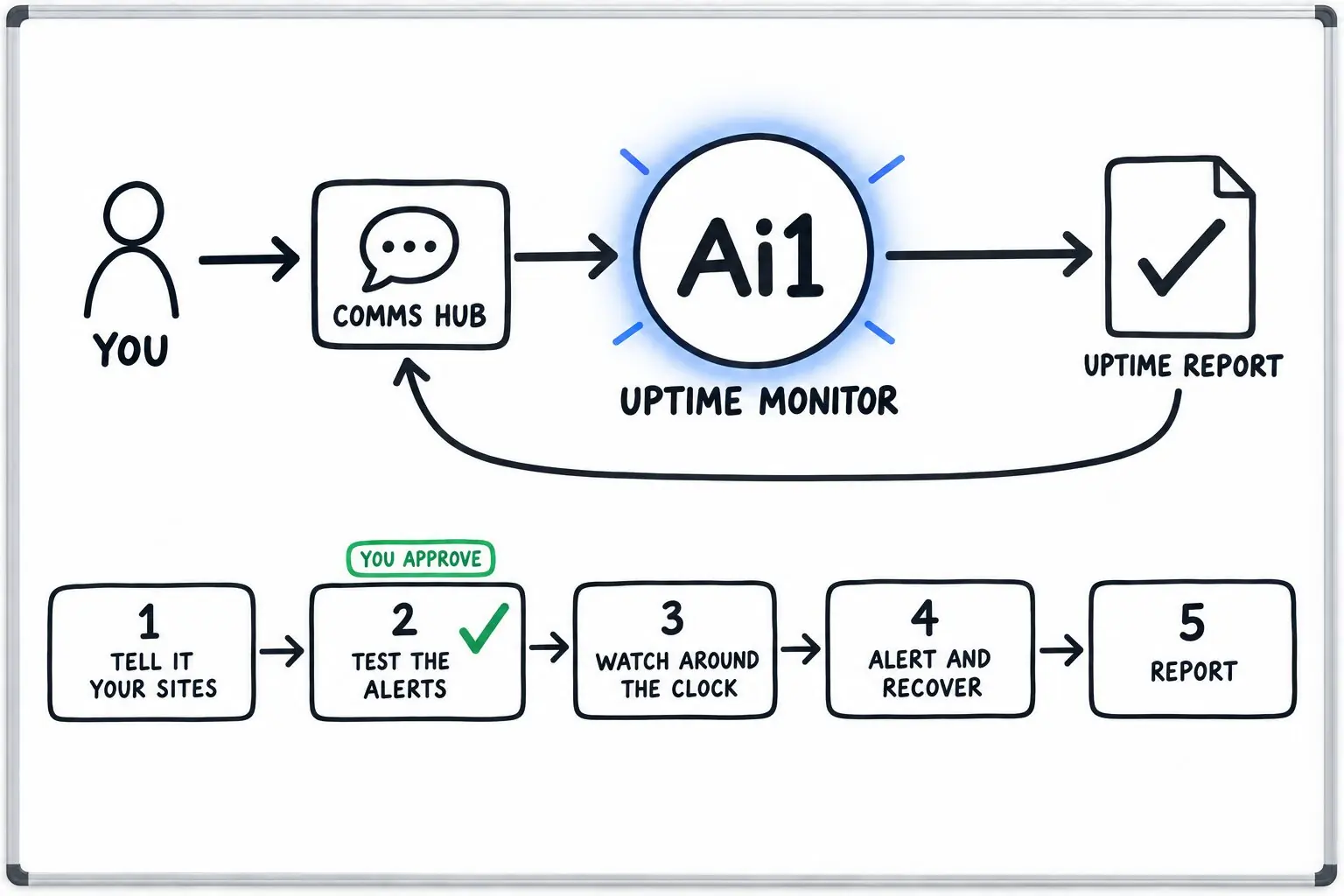
Your site addresses, your key pages, how often to check each one and who should be alerted.
A test alert for each route, sent only after you say yes. A route counts as ready once its test arrives.
Checks each site on your schedule and confirms a real outage with two failed checks before alerting.
Retests each key page on your schedule and alerts on clear slowdowns and on recoveries.
If you ask, ranked fixes go to the Webmaster, which shows you a preview first. A retest shows whether the change helped.
What one week looks like
Example with a fictional business. Names and figures are invented to show the kind of week you get.
What it was asked: Is our site up and fast, and what should we fix first?
| Outage | One confirmed outage on Tuesday night, lasting 14 minutes. An alert went out, then a recovery notice. |
|---|---|
| False alarms | None. A single failed check is checked again before anyone is alerted. |
| Slow page | The booking page slowed down on phones after a new photo gallery was added. |
| Fix first | Resize the gallery photos on the booking page. |
| After the fix | The Webmaster showed a preview, you approved it, and a retest confirmed the page was fast again. |
Run it on a schedule
Once it is set up, health watch runs without anyone asking. Each site and each key page has its own schedule.
| Starts | The schedule you set for each site and page |
|---|---|
| Schedule | Uptime checks from every minute to once a week; key pages retested at most once an hour |
| Needs from you | Your site addresses, your key pages and who to alert |
| You get | Alerts on confirmed outages and clear slowdowns, recovery notices and ranked fixes |
| If it can't finish | If the checker stops, it says plainly that monitoring is not running and never claims your sites are fine. |
Built-in guardrails
Here is how the recipe keeps you in control.
Better together
The agents and recipes behind this recipe.
Agent. Confirms outages and sends the alerts.
Agent. Tests your key pages and ranks the fixes.
Agent. Looks after your live site and its changes.
Recipe. Builds a page that is tracked and fast from the start.
Common questions
Two failed checks a few seconds apart confirm a real outage before anyone is alerted.
To the people and routes you choose. While an outage lasts there is an hourly reminder, and a recovery notice when the site is back.
No. The monitors only watch and alert. Fixes go to the Webmaster if you ask, and nothing reaches your live site without your approval, apart from low-risk tasks you choose to allow up front.
If your site's bot protection blocks the test browser, the Page Speed Monitor leaves that page out and explains how to let the test through.
We will set up the watch on your own site and walk you through the first week.